How to Integrate Convert A/B Testing with Shopify (Using the Convert Shopify App)

Integrating Convert with Shopify allows you to run reliable A/B tests, track conversions, and optimize your storefront without manually editing theme files or injecting scripts.
This guide walks through the complete setup—from preparing your Convert account to launching and monitoring experiments using the Convert Shopify App.
Before You Start: Prepare Your Convert Account
Before installing the Shopify app, a few configurations must be completed in Convert.
Create a Project in Convert
- Log in to your Convert dashboard.
- Create a new Project (for example: Acme Inc – Shopify).
A Convert project acts as the container for:
- Experiments
- Goals
- Tracking configuration
- Locations
- Reporting
Create Required Goals in Convert
The Convert Shopify app pulls goals directly from your Convert project. These goals must exist before you configure the app.
In your Convert project:
- Go to Goals
- Create goals as JavaScript-triggered goals
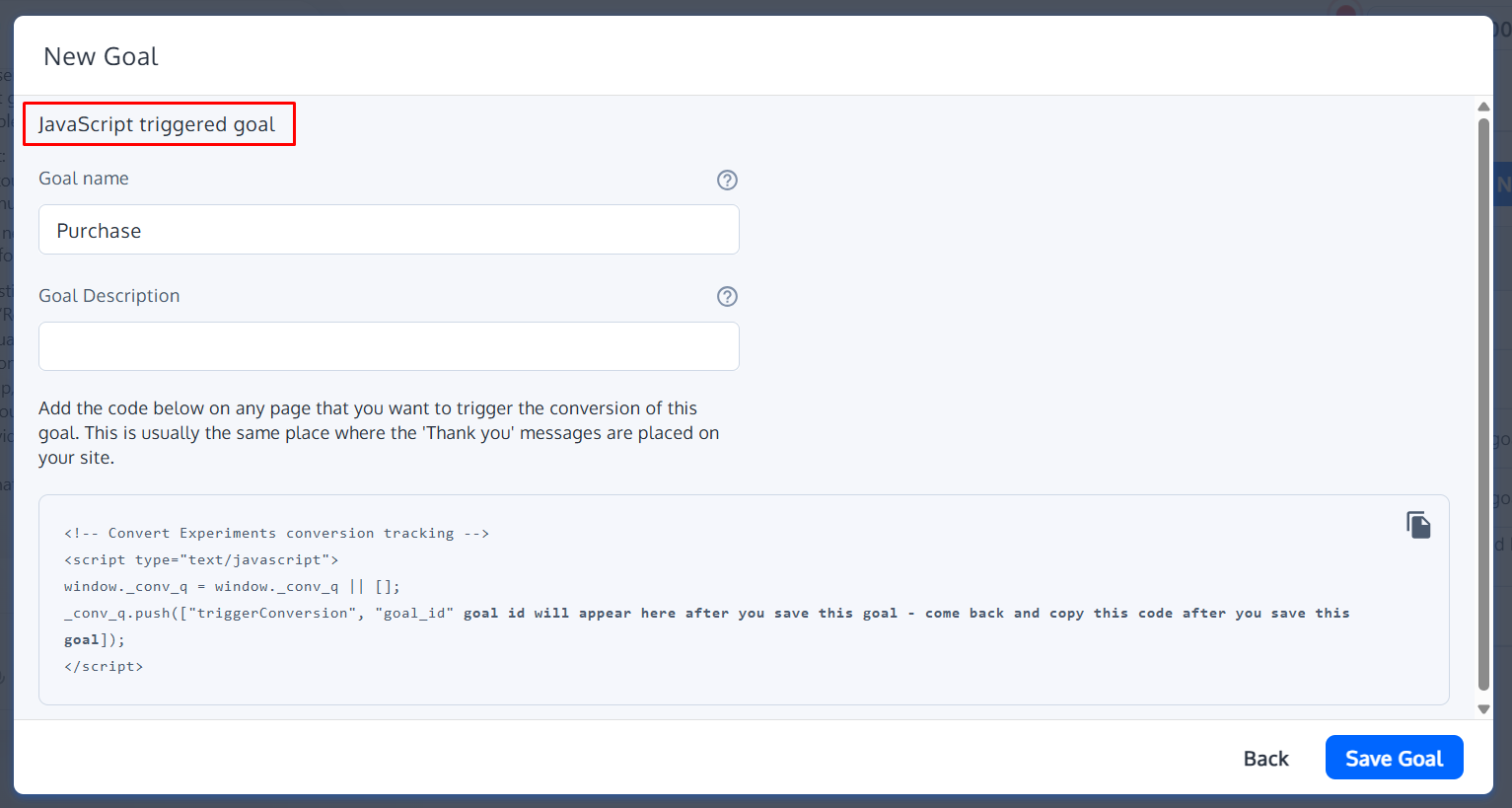
Recommended goals:
Purchase(required for checkout completion tracking)Add to CartProduct ViewedCollection ViewedCheckout Started
Generate Convert API Keys
The Shopify app connects securely to Convert using API credentials.
- In Convert, go to Account Settings → API Keys

- Create a new API key
Suggested name: Shopify Integration – Acme Inc - Copy and store the API Key and API Secret securely
You will need the API Key during Shopify app setup.
Integrate Convert with Shopify Using the Convert App
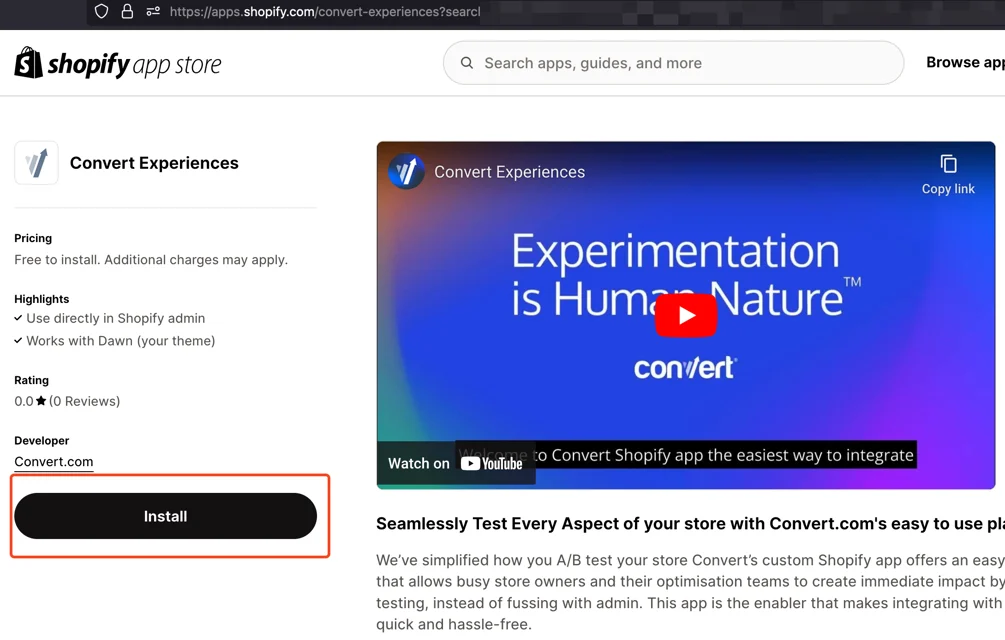
Step 1: Install the Convert Shopify App
Install the Convert Experiences app from the Shopify App Store.
Compatibility notes:
- The Convert Shopify app works only with Online Store 2.0 themes
- Vintage or legacy themes do not support app embed blocks
- Migration to Online Store 2.0 is required for full compatibility
Step 2: Authenticate Using Your Convert API Key
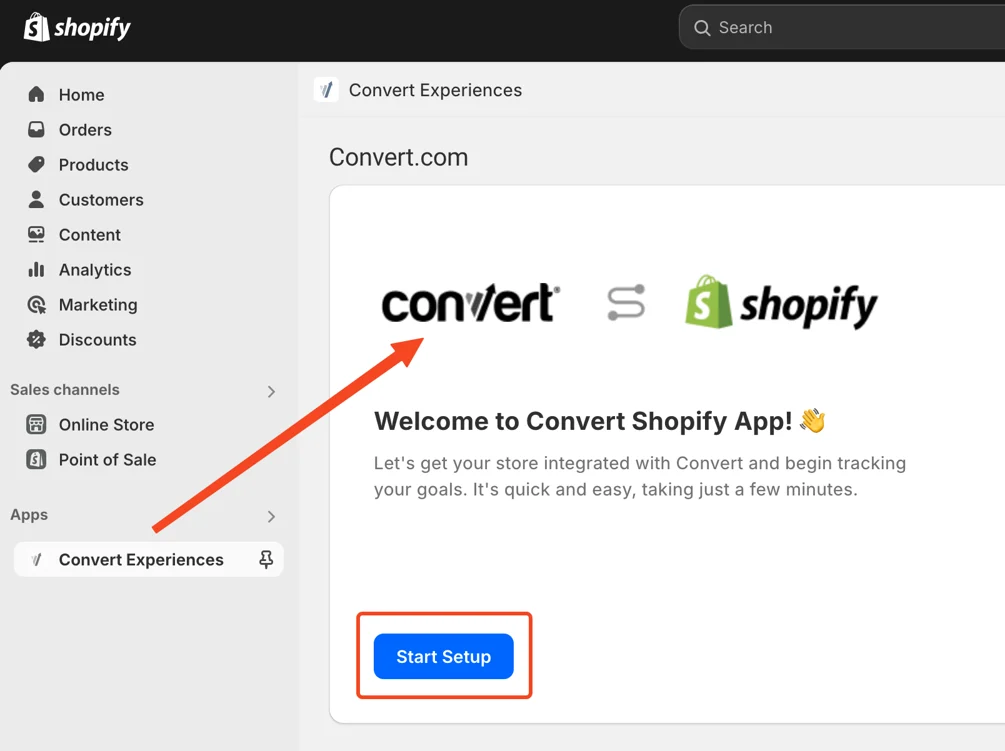
- In Shopify Admin, go to Apps → Convert Experiences
- Click Start Setup
- Paste your Convert API Key
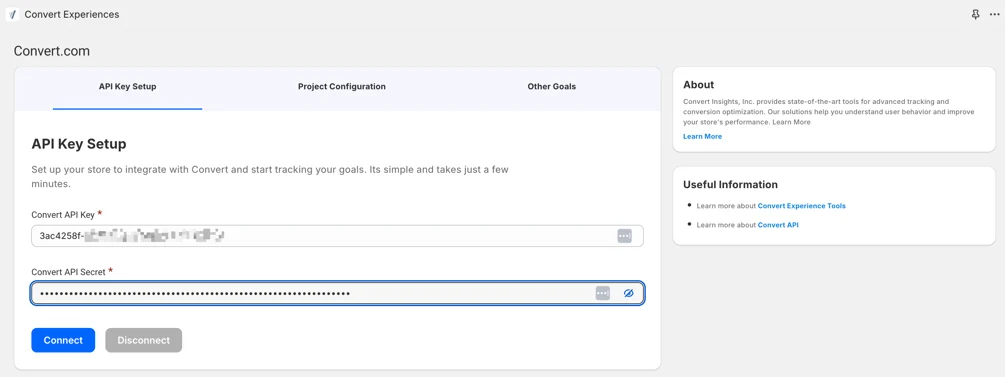
- Click Connect
Once validated, your Shopify store is securely linked to your Convert account.
Step 3: Configure Project Settings
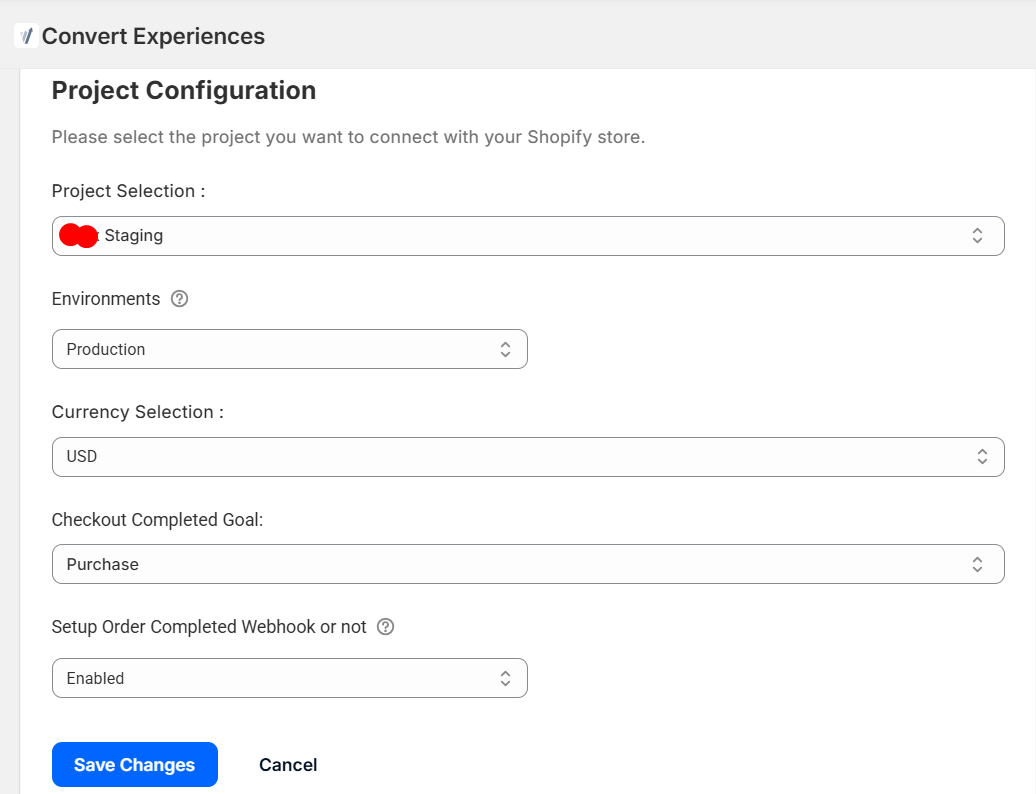
After authentication, configure how Shopify data maps to Convert.
You will be asked to select:
- The Convert project you want to use
- Your store currency (used for revenue tracking)
- The checkout completion goal (typically
Purchase)
Save the settings to continue.
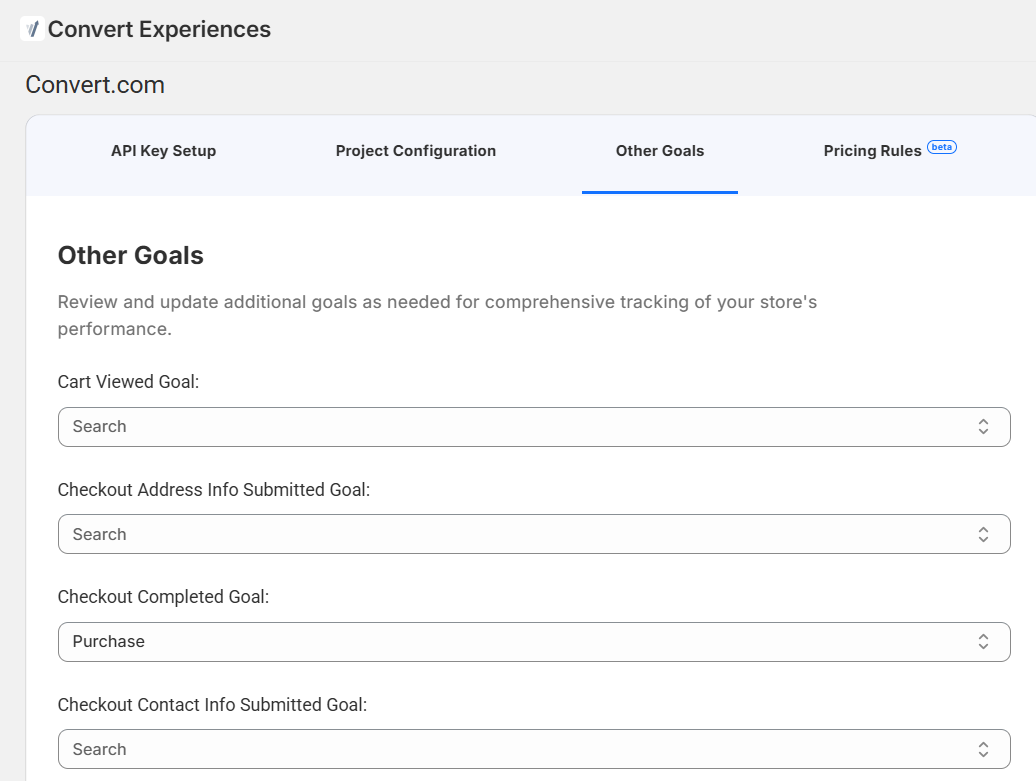
Step 4: Map Goals Between Convert and Shopify
The Convert app supports automatic tracking for key Shopify events, but only if the goals already exist in Convert.
Available Shopify events include:
- Revenue
- Add to Cart
- Cart Viewed
- Product Added to Cart
- Product Removed from Cart
- Product Viewed
- Collection Viewed
- Checkout Started
- Checkout Contact, Shipping, and Payment Info Submitted
- Checkout Completed
- Search Submitted
- Subscription and Non-Subscription purchases
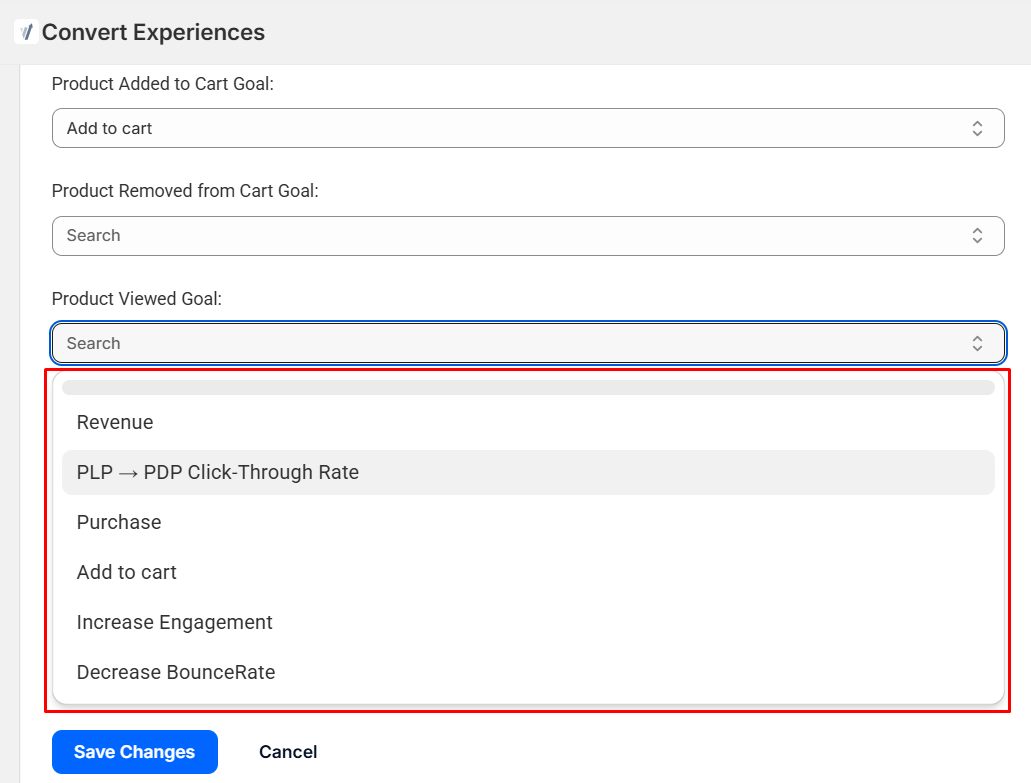
If goals do not appear in the dropdown:
- Go back to Convert
- Create them as JavaScript-triggered goals
- Click Reload Goals in the Shopify app
Once visible, map each Shopify event to the appropriate Convert goal and save the configuration.
Understanding Shopify Goals in the Convert App
Each goal dropdown in the Convert Shopify app represents a Shopify customer event that can be mapped to a JavaScript-triggered goal in Convert.
Convert does not automatically create goals. The app only lists goals that already exist in your Convert project.
Important note: If goals are not created in Convert, they will not appear in the Shopify app dropdown.
Core Funnel Goals (Recommended)
These goals are sufficient for most Shopify A/B testing programs:
- Product Viewed
Tracks visits to product detail pages (PDPs).
Useful for measuring PLP → PDP click-through performance. - Product Added to Cart
Fires when a customer adds a product to the cart.
Commonly used as the primary goal for PDP experiments. - Checkout Started
Tracks when a customer enters checkout from the cart.
Useful for evaluating cart and shipping incentive experiments. - Checkout Completed
Tracks successful purchases and revenue.
This should be mapped to your Purchase goal in Convert and is typically used as the primary conversion goal.
Supporting and Diagnostic Goals
Convert also supports more granular tracking, including:
- Cart viewed
- Collection viewed
- Search submitted
- Checkout contact, shipping, and payment steps
- Product removed from cart
- Subscription and non-subscription purchases
These goals are best used as secondary metrics to understand funnel drop-offs, friction points, and behavioral differences between variations.
Best Practice
- Use Checkout Completed (Purchase) as the primary conversion goal
- Use Add to Cart and Checkout Started as supporting goals
- Avoid using checkout micro-steps as primary goals unless diagnosing funnel friction
Install and Verify the Tracking Script
Convert installs its tracking script using Shopify App Embed, not manual theme edits.
- In the Convert app, click Install Tracking Script
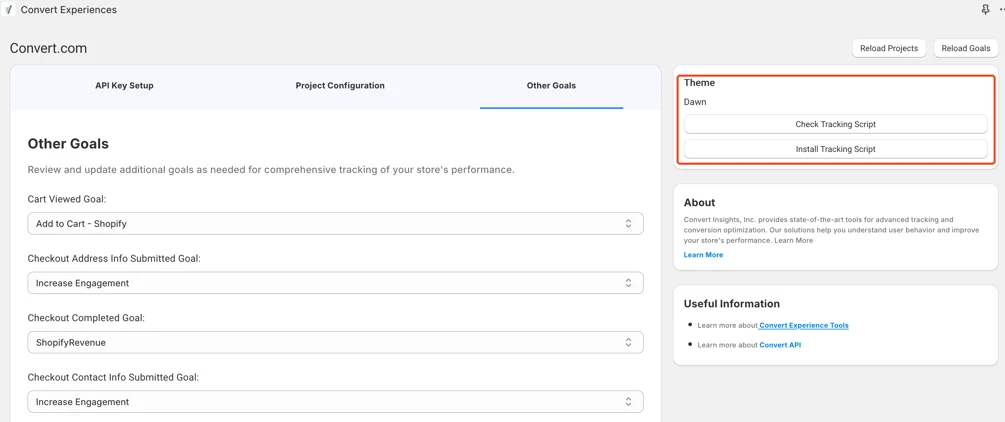
- Shopify’s theme editor opens automatically
- Enable the Convert app embed toggle
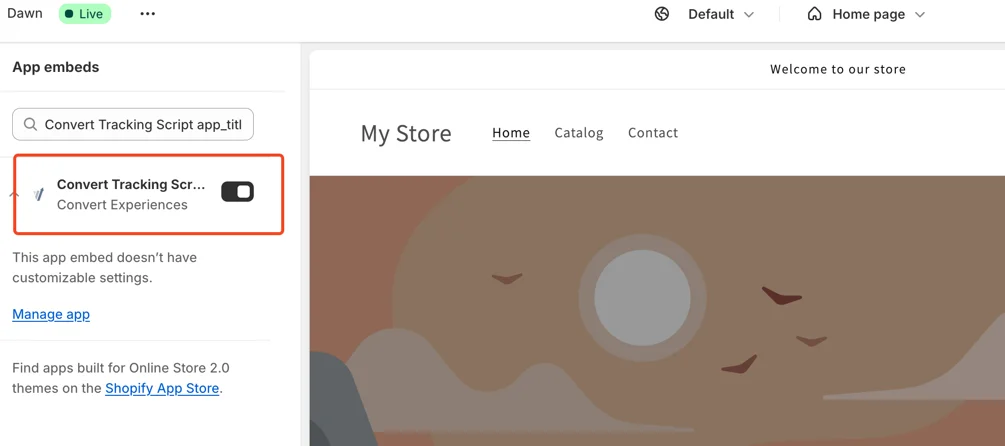
- Click Save
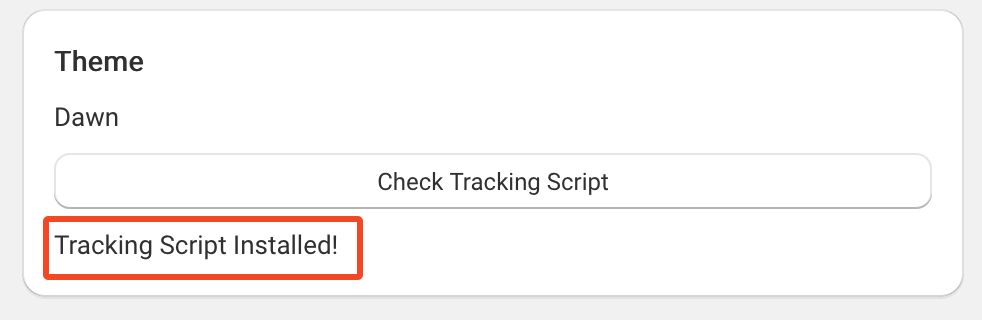
- Return to the Convert app and click Check Tracking Script
If successful, you’ll see confirmation that the tracking script is installed.
Create and Run Experiments in Convert
Create an Experiment
- Log in to Convert
- Go to Experiments → Create New Experiment
- Enter:
- Experiment name and description
- Shopify URLs to test (homepage, product pages, collections)
- Select relevant goals
- Create variations using Convert’s Visual/Code Editor
- Start the experiment
All changes are applied client-side and do not modify Shopify theme files.
Monitor Results and Optimize
With the experiment running, Convert provides real-time insights, including:
- Goal conversions
- Revenue per variation
- Statistical confidence
- Traffic distribution
Use these insights to identify winning variations and guide future optimization.
Advanced: Shopify Checkout Extensibility and Tracking
Due to Shopify’s Checkout Extensibility, direct checkout A/B testing is restricted.
- JavaScript cannot be injected into checkout
- Checkout UI changes cannot be tested directly
Convert still tracks purchases using:
- Shopify Pixels
- Order webhooks
This ensures accurate, secure, and compliant conversion tracking.
Compatibility Summary
- Online Store 2.0 themes: Fully supported
- Vintage / legacy themes: Not supported
- Shopify plans: Supported across all plans
- Updates: Automatic and non-disruptive
FAQ
Q: Can I A/B test the Shopify checkout?
A: No. Checkout UI testing is restricted under Checkout Extensibility.
Q: How does Convert track purchases without thank-you page scripts?
A: Through Shopify Pixels and order webhooks.
Q: Do I need to add any code manually?
A: No. All scripts are installed via Shopify app embed.
Q: Will app updates interrupt running experiments?
A: No. Updates are automatic and do not affect live tests.
Final Note
This setup represents the recommended and future-proof way to run A/B tests on Shopify using Convert, while staying aligned with Shopify’s evolving platform architecture.
To Know More
- Convert: Integrate with Shopify through our Shopify Convert App
- YouTube: Integrate with Shopify with Convert Experiences